
Dailymotion
Stack Info
- The Dailymotion stack allows you to embed responsive Dailymotion videos onto your site quickly. It also offers you lots of options to customize the player including all the colors.
- Current Version: 1.0.0
- Release Date: 30th July 2013
- Last Update: N/A
- Responsive: Yes
- Requires: Rapidweaver 5+ and Stacks 2+
- Browser Compatibility: IE7+, Safari, Chrome, Firefox
User Guide
COMING SOON
The Dailymotion stack was designed to be deployed as quick and as easy as possible, if you are looking for a bit of guidance about where to start follow the steps below to get your feet off the ground.
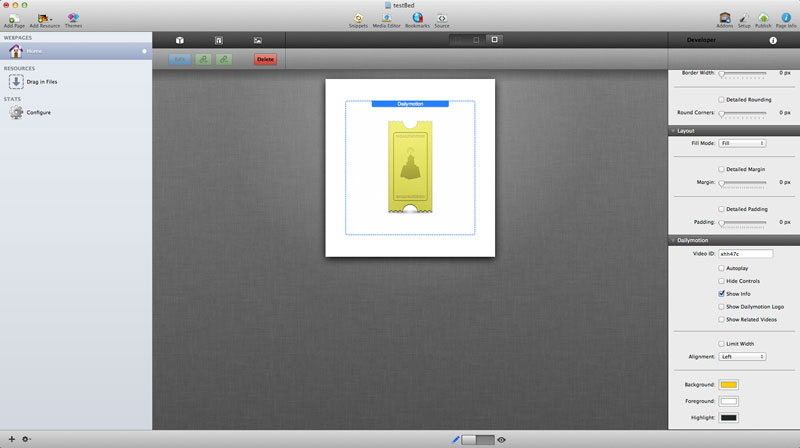
Click to enlarge
1- When you drag your Dailymotion stack out you will see the screen pictured above
2- To get your video displaying you will need to enter the Video ID in the stacks option pane, if you are having trouble finding the Video ID please refer to the section below
3- Change the settings below the video ID to change how you would to display the video such as enabling Auto play and Hiding Information
4- The video is set so it expands to the pages max size, if you would like to limit the max size of the responsive video you can by checking the "Limit Width" box and entering the dimensions you would like to display. For more information on limiting the width of the player please the section below.
2- To get your video displaying you will need to enter the Video ID in the stacks option pane, if you are having trouble finding the Video ID please refer to the section below
3- Change the settings below the video ID to change how you would to display the video such as enabling Auto play and Hiding Information
4- The video is set so it expands to the pages max size, if you would like to limit the max size of the responsive video you can by checking the "Limit Width" box and entering the dimensions you would like to display. For more information on limiting the width of the player please the section below.
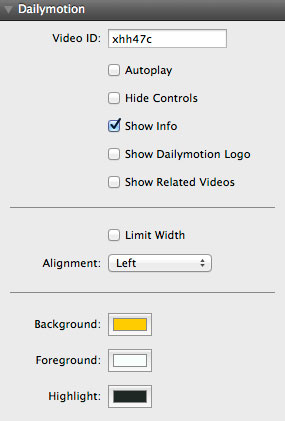
Click on the options below to expand more information
Video ID
Insert the video ID of the video you would like to display. For more information on what a Video ID is and where to find it please refer to the section below
Autoplay
Enable this box to play the video automatically when the page has loaded
Hide Controls
When this box is enabled the controls for the video will not be shown. NOTE- You cannot hide the controls and show the video Info
Show Info
Enable this box to show the video information such as title and uploader before the video is played. When the controls are hidden so is the Video Info automatically
Show Dailymotion Logo
When this box is enabled the Dailymotion logo will be shown in the bottom right before the video is played.
Show Related Videos
Enable this box to display related videos to the user after the video has finished
Limit Width
The Dailymotion stack automatically fills out to the maximum possible container, to limit the maximum dimensions of this stack check this box. When checked two new input boxes are displayed below
Limit Width
When this box is enabled the controls for the video will not be shown
Max Width
Input the maximum width you would like the container to display. WARNING- Please use dimensions recommended in the limit dimensions section below for best results.
Max Height
Input the maximum height you would like the container to display. WARNING- Please use dimensions recommended in the limit dimensions section below for best results.
Alignment
Select the alignment you would like to display on the video. This only aligns the video when the dimensions are limited as the video automatically fills out the space it is in.
Background
Select the background color of the info pane at the bottom of the video.
Foreground
Select the text colors and button color on the video
Highlight
Select the color displayed when different aspects of the video such as play button and text are hovered over
For the stack to find the video you would like to display a Video ID is required, the video ID can be found very easily following the instructions below
Go to the web page of the video you would like to use to display on your site, the video ID can be found within the web address in the URL bar.
The Video ID is the sequence of numbers and letters after "..video/" and before "_video_title_"
An example can be seen below
Just copy the Video ID then insert it into the stack options.
The Video ID is the sequence of numbers and letters after "..video/" and before "_video_title_"
An example can be seen below
Just copy the Video ID then insert it into the stack options.

The Dailymotion stack is responsive and because of this the video player is designed to be a 100% width and height which means it will expand to the max space of the container it is in. In the stack there is an option to limit the max width and height, the container will still be responsive but it's starting size will be the values you set.
This feature can be used with any input and the videos will re-size to those dimensions but for best results it is recommended that you use the dimensions below for the best results.
Recommended Dimensions
560x315
640x360
853x480
1280x720
Custom Dimensions
To configure the best dimensions for your max video size please use this online aspect ratio calculator
http://size43.com/jqueryVideoTool.html
This feature can be used with any input and the videos will re-size to those dimensions but for best results it is recommended that you use the dimensions below for the best results.
Recommended Dimensions
560x315
640x360
853x480
1280x720
Custom Dimensions
To configure the best dimensions for your max video size please use this online aspect ratio calculator
http://size43.com/jqueryVideoTool.html
The video player is being cut off at the bottom
Due to the way some themes are built some cropping of the bottom section of the video may occur. This is easily fixed by adding bottom padding to the stack.
My Video is displaying a message saying it is not available
Some videos on Dailymotion are linked from other sites such as Vimeo and Hulu therefore they can not be embedded.
How do I know if there is an update
Dailymotion uses the auto updater that is built into the stacks plug in, it will alert you when an update is available. Please follow the instructions on the updater to guide you through the process. If you are having problems you can re download and re install Dailymotion using your original download link
How can I re download Dailymotion?
Please visit this link and enter your details to be resent your invoice which includes your download link.
https://pressuredesigns.cartloom.com/lookup
https://pressuredesigns.cartloom.com/lookup