
Creeper

Stack Info
- The Creeper stack allows you to create a fixed container that follows your visitors down the page when scrolled over. It is great for displaying important information such as page titles all the way down the page keeping your user engaged.
- Current Version: 2.1.2
- Release Date: 6th May 2013
- Last Update: 24th September 2013
- Responsive: Yes
- Requires: Rapidweaver 5+ and Stacks 2
- Browser Compatibility: IE6+, Safari, Chrome, Firefox, iOS
User Guide
Creeper is very easy to get up and running in under a minute. Drag and drop the stack into your page and follow the steps below to get you started.
1-Drag in the content you want to be fixed at the top of the page
2-Select the shadow you would like to display
3-Enable the full width and or the fixed width container option
4-Select the colors
You are good to go!
1-Drag in the content you want to be fixed at the top of the page
2-Select the shadow you would like to display
3-Enable the full width and or the fixed width container option
4-Select the colors
You are good to go!
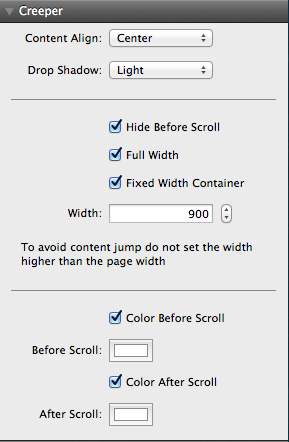
Content Align
Select the alignment (Left, Center, Right) of the content inside the creeper container
Drop Shadow
Select the type of shadow you would like to display below the creeper container after it has been scrolled over
Hide Before Scroll
This option hides the container before the item has been scrolled over, when it has been scrolled over it will appear at the top of the page
Full Width
The container will assume 10% width
Fixed Width Container
The fixed width of the creeper container regardless of the content width
Width
This is displayed when the Fixed Width Container option has been checked, this gives the width to the creeper container
Color Before Scroll
Enable this box to select the color before scroll and select that color from the picker below. Disable this box for no color before the scroll
Color After Scroll
Enable this box to select the color after scroll and select that color from the picker below. Disable this box for no color after the scroll
If you would like to use a background image instead of a color then follow the steps below.
1-Click on the Stack and under "Background" in the info pane select tiled image under type.
2-Add the image you would like to use for the background
3-In the Stack settings disable "Color Before Scroll" and "Color After Scroll"
1-Click on the Stack and under "Background" in the info pane select tiled image under type.
2-Add the image you would like to use for the background
3-In the Stack settings disable "Color Before Scroll" and "Color After Scroll"
How do I update Creeper?
Creeper uses the auto updater that is built into the stacks plug in, it will alert you when an update is available. Please follow the instructions on the updater to guide you through the process. If you are having problems you can re download and re install Creeper using your original download link
How do I find my lost download link?
Please visit this link and enter your details to be resent your invoice which includes your download link.
Where do I send feature requests?
I am always looking for ways to update and improve my themes and stacks so I would love to hear your thoughts. Please send them in using the contact form on the contact page here
What can I insert into Creeper?
You can add in anything you would like, Creeper contains an empty stack container so you can put anything from a simple header to a video or layers of stacks!