
Vine
Stack Info
- The Vine Stack enables you to insert a Vine video into your webpage with ease and offering all the features from the Vine API so you can style the video however you want.
- Current Version: 1.1.0
- Release Date: 30th July 2013
- Last Update: 20th June 2013
- Responsive: No
- Requires: Rapidweaver 5+ and Stacks 2+
- Browser Compatibility: IE7+, Safari, Chrome, Firefox
User Guide
COMING SOON
The Vine stack was designed to be deployed as quick and as easy as possible, if you are looking for a bit of guidance about where to start follow the steps below to get your feet off the ground.
Click to enlarge
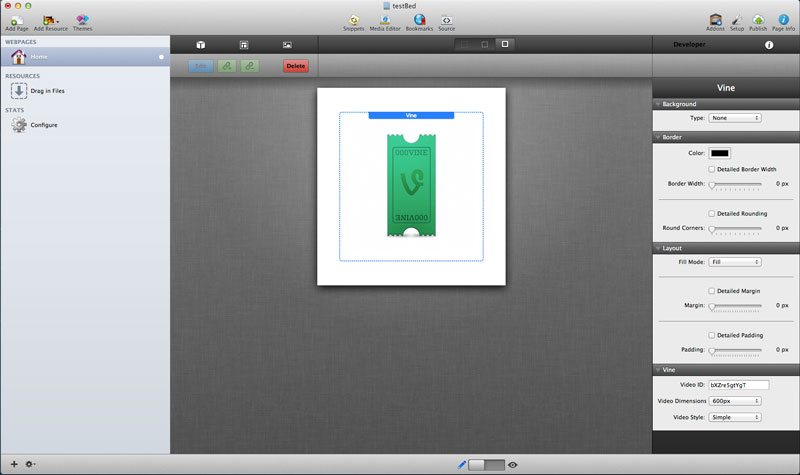
1- When you drag the Vine stack into your stacks Page you will see the screen above.
2- To get the video you would like to display add the Video ID into the stack settings (To find the Video ID please see the section below)
3- Select the video dimensions and display style
4- Your good to go!
2- To get the video you would like to display add the Video ID into the stack settings (To find the Video ID please see the section below)
3- Select the video dimensions and display style
4- Your good to go!
Click on the options below to expand more information
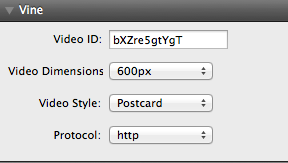
Video ID
Insert the video ID of the video you would like to display. For more information on what a Video ID is and where to find it please refer to the documentation.
Video Dimensions
Select the dimensions you would like to display for your Vine video. All values are squares as per Vine's API. Unfortunately these are the only dimensions Vine is compatible with.
Video Style
Select the style you would like to display your Vine video in, the available options are Postcard and Simple; both of which are displayed in the Demo
Protocol
Select if you would like to use http or https when loading in the vine resources
For the stack to find the video you would like to display a Video ID is required, the video ID can be found very easily following the instructions below
The Vine Video ID can be found very easily on the videos page inside the URL. The Video ID is the sequence of numbers and letters after "vine.co/v/"
The video ID for the link below is in bold.
The video ID for the link below is in bold.
http://vine.co/v/bwUAM7BTV3IJust copy the Video ID inside the stack and it will display that video in Preview Mode.
The video player is being cut off at the bottom
Due to the way some themes are built some cropping of the bottom section of the video may occur. This is easily fixed by adding bottom padding to the stack. Click on the Stack and under the Layout section in the HUD click on "Detailed Padding" then add Bottom Padding as necessary
Why can't i hide the uploader or auto play the video?
Unfortunately Vine as of yet have not put this in their API so there is no way of doing this, I have sent a request to them to improve their embed API so stay tuned.
How do I know if there is an update
Vine uses the auto updater that is built into the stacks plug in, it will alert you when an update is available. Please follow the instructions on the updater to guide you through the process. If you are having problems you can re download and re install Vine using your original download link
How can I re download Vine?
Please visit this link and enter your details to be resent your invoice which includes your download link.
https://pressuredesigns.cartloom.com/lookup
https://pressuredesigns.cartloom.com/lookup
Why won't the Video play?
The Vine video automatically plays when it has been clicked on, it can also be unmuted from its automatic setting of being muted by clicking on the speaker icon in the top left corner.